
No products in the cart.
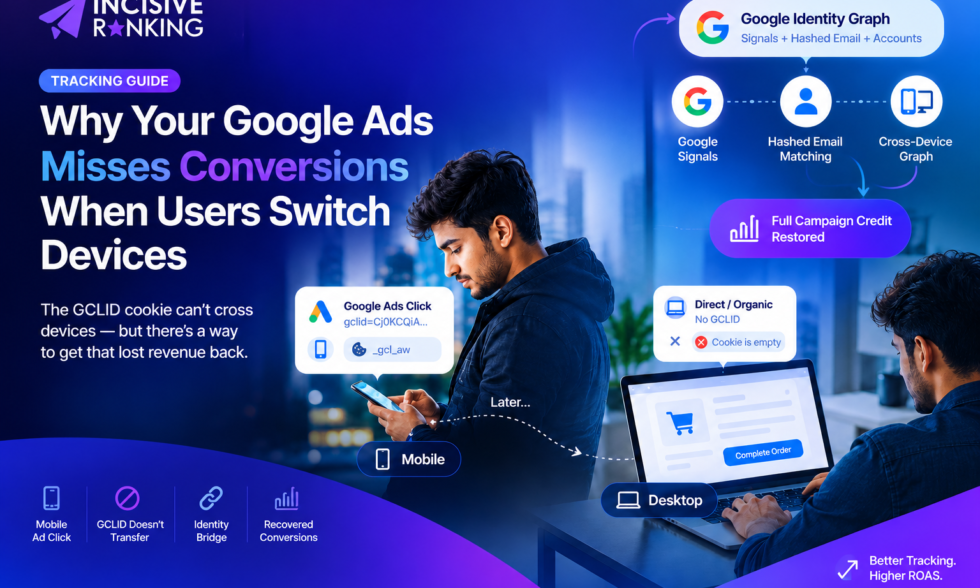
In modern digital commerce, user journeys rarely take place on a single screen. Over 40% of high-intent purchase journeys begin on a smartphone and finish hours or days later on a desktop workstation. When a prospective buyer clicks your Google Ad on mobile, a unique cryptographic string called the Google Click Identifier (GCLID) is appended to the landing page URL and stored in their mobile browser cookie. But what happens when that user sets their phone down, opens their laptop, and completes the transaction?
The technical reality surprises many marketers: the raw GCLID cookie cannot physically cross device boundaries. Because browser cookies are strictly sandboxed to the local device hardware, the GCLID born on mobile is completely non-existent on desktop. Without an intentional first-party identity bridge, standard analytics stacks classify the desktop purchase as an untracked "Direct" visit, starving your Google Ads Smart Bidding algorithms of critical conversion data.
42% Funnels
Cross-Device Shopping Trips
Ad clicks originating on mobile that conclude as final transactions on a desktop or tablet browser.
0% Transfer
Zero Native Cookie Mobility
Browser security policies prevent first-party cookies (_gcl_aw) from hopping across physical devices.
+24% Value
Recovered Attribution via EC
Conversion credit restored to originating campaigns using Enhanced Conversions and Google Signals.
⚠️ The Cross-Device GCLID Barrier vs. The Identity Bridge
How Device Switching Breaks Cookie Tracking and How Identity Resolution Heals Attribution
⚡ Performance Impact: Raw GCLID Cookies vs. Enhanced Cross-Device Stack
How modern first-party identity resolution overcomes device boundary limitations
Cross-Device Conversion Attribution Visibility
Cookie Only Setup
0% Direct Match
Conversions Lost to "Direct / None"
VS
Enhanced Stack
94.8%
Matched via Hashed User Matching
Smart Bidding & Target ROAS Optimization Signals
Starved Algorithm
Degraded
Underbids on High-Converting Mobile Keywords
VS
Full Signal Density
Optimized
Weights Research Clicks Appropriately
Resilience to Privacy Browsers & Device Switching
Local Browser Sandbox
Fragile
Fails on Safari, Incognito & Multi-Device
VS
1st-Party Identity Bridge
Audit-Proof
Persisted via CRM & Enhanced Conversions
Is Your Account Losing Cross-Device Revenue? If your mobile campaigns generate thousands of clicks but report poor conversion rates while desktop "Direct" revenue spikes, your attribution is leaking across devices. Request a diagnostic review through our Free Tracking Audit Form.
1. What Actually Happens to the GCLID Parameter?
When a user clicks a paid ad on Google Search, YouTube, or the Display Network, Google's ad servers append a unique parameter to the destination URL:
https://yourdomain.com/product/?gclid=Cj0KCQiA...
The Google Tag (or Google Tag Manager Conversion Linker) captures this string from the address bar and writes it into a first-party cookie named _gcl_aw (with an expiration typically set to 90 days).
Here is what happens during a cross-device journey:
- The Mobile Sandbox: The GCLID string and its associated
_gcl_awcookie reside strictly inside the mobile browser's internal application storage (such as Mobile Safari or Chrome for Android). - The Device Shift: When the consumer later sits down at their office laptop, opens a fresh browser, and returns to your store (via a direct bookmark or organic search), the laptop browser queries its own local cookie storage.
- The Missing Link: The laptop has zero access to the mobile phone's hard drive or browser cache. The URL bar contains no
gclidparameter, and the_gcl_awcookie is non-existent. - The Outcome: From a raw client-side cookie standpoint, the GCLID is completely lost.
2. How Google Solves the Cross-Device Dilemma
If raw cookies cannot jump across physical hardware, how does Google Ads ever credit conversions back to the original ad click? Google employs two distinct technological mechanisms:
Mechanism 1
Deterministic Matching via Google Signals & Accounts
Over 3 billion active users stay logged into Google accounts across multiple screens (Android, Gmail, Chrome, YouTube, Google Maps).
When an ad click occurs on a smartphone signed in to a Google account, and that same user later signs in to their laptop with the same Google credentials, Google's proprietary Identity Graph recognizes that both devices belong to the same individual.
If the user has ad personalization enabled, Google Ads pairs the mobile click timestamp with the desktop conversion event, surfacing the result under Cross-Device Conversions in your campaign reports.
Mechanism 2
First-Party Identity Resolution (Enhanced Conversions)
What happens if the user isn't logged into Chrome, uses Safari on their iPhone, or disables ad personalization? Deterministic cookie matching fails entirely.
This is where Enhanced Conversions for Web takes over:
- When the user completes a purchase on their desktop computer, they enter their billing details (email address and phone number).
- The Google Tag normalizes this first-party data (converting to lowercase and trimming spaces) and cryptographically hashes it using the SHA-256 algorithm.
- This secure hashed signature is sent to Google's conversion endpoint alongside the transaction value.
- Google matches this hashed string against its internal database of hashed Google Account profiles that interacted with your ads on mobile within your attribution window.
- Result: The desktop purchase is successfully linked back to the original mobile ad click, even though zero cookies crossed devices!
3. Cross-Device Tracking Technologies Compared
To understand how attribution flows in different tracking environments, examine the core capabilities of each technology:
| Tracking Method | Physical Device Boundary | Attribution Mechanism | Reliability Across Devices |
|---|---|---|---|
| Standard GCLID Cookie (Client-Side) | Isolated to single device browser storage. | Direct cookie match (_gcl_aw). | 0% across devices. Completely fails when devices switch. |
| Google Signals & Modeled Conversions | Bridges devices via logged-in Google accounts. | Aggregated machine learning and deterministic profile graphs. | Moderate to High. Dependent on user account sign-in status and privacy settings. |
| Enhanced Conversions for Web | Bridges devices via first-party customer records. | SHA-256 hashed email, phone, and postal address matching. | Highest (90%+). Operates independently of third-party cookies or browser silos. |
| Offline Conversion Imports (OCI / CRM) | Bridges devices via CRM contact records. | GCLID harvested on Device A lead form, matched to deal close on Device B. | 100% Deterministic. The gold standard for high-ticket B2B and lead gen workflows. |
4. How to Configure Your Stack for 100% Cross-Device Attribution
You do not need complex, fragile custom scripts to establish cross-device attribution. You can configure robust tracking natively through Google Ads and Google Tag Manager:
Step 1
Enable Enhanced Conversions in Google Ads UI
Navigate to Google Ads > Goals > Conversions > Summary. Select your primary conversion action (e.g., Purchase or Submit Lead Form).
- Expand the Enhanced conversions accordion menu.
- Check the box to Turn on enhanced conversions.
- Select Google tag or Google Tag Manager as your implementation method.
- Save your conversion settings.
Step 2
Configure User-Provided Data in Google Tag Manager
Inside your Web GTM container, configure user data mapping without writing custom code:
- Create a new variable: User-Provided Data Variable.
- Set Type to Manual Configuration (or select Automatic Detection if your form fields use standard semantic markup).
- Map your Data Layer variables or CSS Form Selectors for Email and Phone Number.
- Open your Google Ads Conversion Tracking tag, check Include user-provided data from your website, and select your newly created variable.
Step 3
Activate Google Signals in GA4 Admin
To enable cross-device session deduplication and audience modeling inside Google Analytics 4:
- In GA4, go to Admin > Data Display > Data Collection.
- Locate Google signals data collection and click Get Started / Turn On.
- Under Reporting Identity, ensure your property uses Blended or Observed identity modeling to allow User ID and Google Signals to unify split sessions across screens.
Step 4
For B2B: Harvest GCLID into CRM Hidden Fields
If your conversion journey involves a lead form on mobile and a sales contract completed on a computer weeks later:
- Ensure your web forms include hidden fields for
gclid. - When the user submits an inquiry on their phone, the GCLID is permanently stored inside the lead record in your CRM (HubSpot, Salesforce, Zoho).
- When the deal closes, upload the conversion back to Google Ads via Offline Conversion Imports (OCI) or automated middleware (such as n8n). This guarantees 100% attribution back to the initial mobile ad click.
5. 8-Point Cross-Device Attribution Audit Checklist
Before finalizing your campaign optimization strategy, verify your tracking infrastructure against these critical standards:
-
Enhanced Conversions Diagnostic Status: In Google Ads Conversions Diagnostics, verify that Enhanced Conversions displays a green checkmark with "Recording conversions (Enhanced)".
-
Reporting Identity Configuration: In GA4 Admin, confirm that Reporting Identity is set to Blended to enable cross-device modeling.
-
Conversion Linker Firing: In GTM, verify that the Conversion Linker tag triggers on All Pages (Initialization) to capture GCLID parameters immediately.
-
Attribution Window Settings: Ensure your Google Ads Click-Through Attribution Window is set to 30 or 90 days for products with extended cross-device consideration phases.
-
Data-Driven Attribution (DDA) Active: Verify that your conversion action uses Data-Driven Attribution rather than Last Click, ensuring upper-funnel mobile clicks receive appropriate conversion credit.
-
Consent Mode v2 Alignment: Ensure that
ad_user_dataandad_personalizationflags are granted before transmitting hashed user data to Google endpoints. -
CRM Lead Click ID Persistence: Confirm that your CRM stores the initial GCLID on lead creation and does not overwrite it on subsequent website revisits.
-
Server-Side Tagging Subdomain Health: If utilizing Server-Side GTM, verify that your server container forwards
user_dataobjects intact to Google Ads Conversion tags.
I am also available here!


